Wonderful Blog
LinkedIn Ad Library
Library usage only: navigation and strategic use, not platform setup.

Published March 4, 2026
LinkedIn Ad Library
The LinkedIn Ad Library is where you view active LinkedIn ads—by advertiser, keyword, or category. Most search results point you to the tool but don't explain how to use it strategically. This post covers where to access it, how to search and filter, and how media buyers use it for competitor and creative research.
TL;DR
- URL: linkedin.com/ads/library — open in a logged-in LinkedIn account.
- Search by: Advertiser name, keyword, or category (e.g. Job, Lead gen, Brand awareness). Filters include format, date range, and region.
- Use it for: Competitor creative, messaging and positioning, and format trends in your vertical.
- Limitation: Only shows ads that meet LinkedIn's transparency criteria; some may be missing.
- Out of scope: Campaign setup, bidding, or audience strategy—see LinkedIn's help center and our blog for related posts.
Where to Find the LinkedIn Ad Library
Go to linkedin.com/ads/library. You must be logged into LinkedIn; the library is available to all members. There's no separate "Ads Manager" login for the library—it's part of the main LinkedIn experience.
LinkedIn's help center describes the Ad Library as part of its ad transparency efforts. Ads that meet their policy are searchable; political and certain other categories may have additional filters.
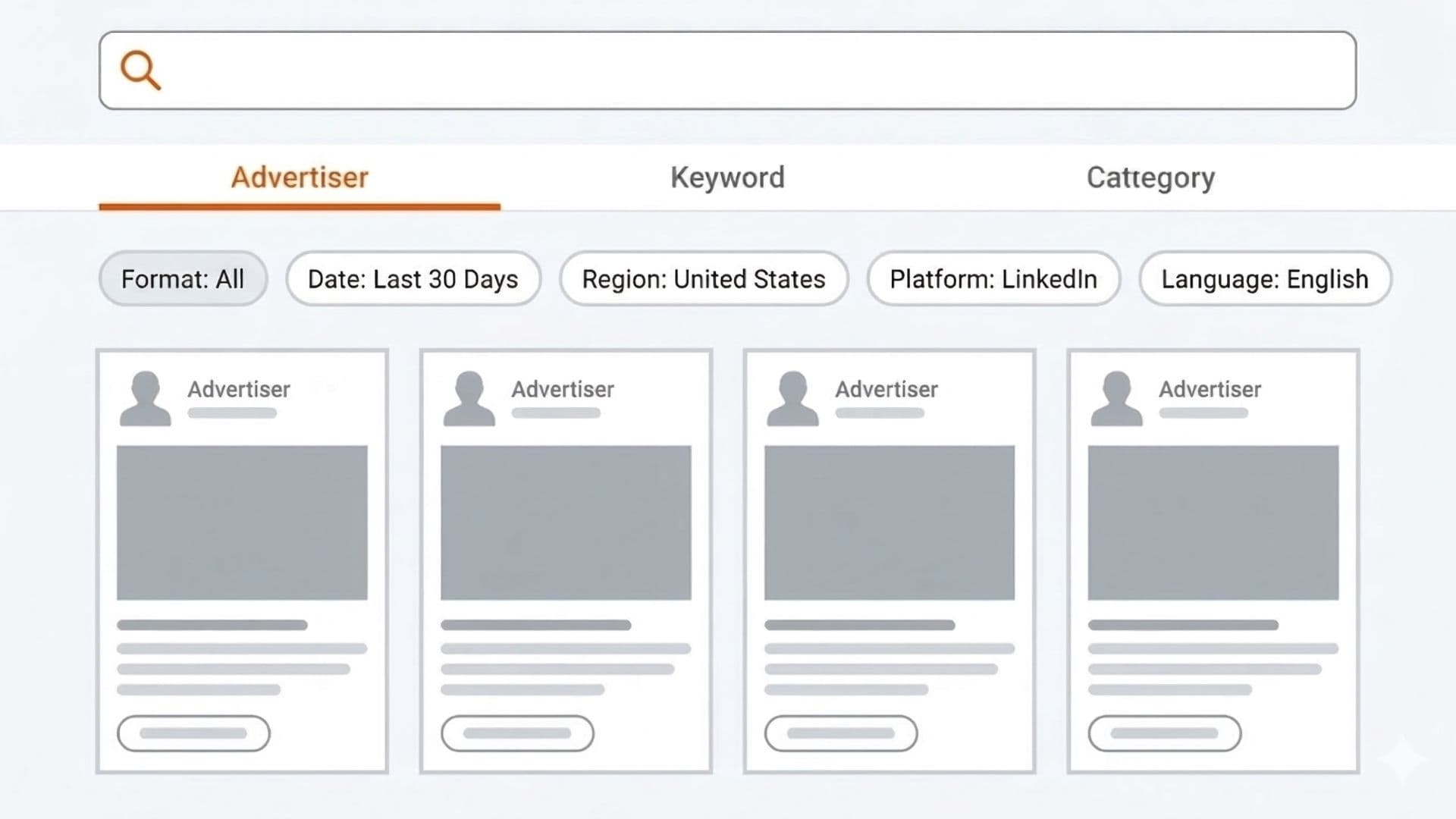
How to Search and Filter
- By advertiser: Enter a company or page name to see all active ads from that advertiser. Use this to audit a competitor's messaging and creative.
- By keyword: Search for terms (e.g. "project management," "CRM") to see who's bidding on them and how they're positioning.
- By category: Browse Job, Lead gen, Brand awareness, etc. to see format and creative norms in your space.
Use the format filter to narrow to single image, video, carousel, or document ads. Date and region filters help you focus on recent or geo-specific creative.
How Media Buyers Use It Strategically
- Competitor audits: Run the same search your prospects might (e.g. "enterprise CRM") and see which brands show up, what angles they use, and what formats dominate.
- Creative inspiration: See what's running in your vertical without guessing. Use it to inform tests, not to copy. Wonderful's ad library lets you browse ad creatives across platforms and verticals to inform your competitive research.
- Messaging and positioning: Compare how 3–5 competitors frame the same problem or offer. You'll spot gaps and overused phrases. AI-powered competitive research can help accelerate this process at scale.
One performance team runs a monthly "library sweep": they search 5 core keywords, export a short list of top advertisers and formats, and share it in Slack. It takes about 20 minutes and keeps creative and messaging aligned with what's actually in market. No extra tools—just the library and a simple spreadsheet.

What the Library Doesn't Show
Not every ad is included. LinkedIn excludes some ad types and may delay or omit ads that don't meet their transparency rules. You're seeing a subset—enough for research, but not a full census of all LinkedIn ads.
Actionable Takeaway
Bookmark linkedin.com/ads/library, search by advertiser or keyword, and use filters (format, date, region) to narrow results. Use it to research competitors and creative trends; for campaign setup and strategy, see LinkedIn's help center and our blog for related posts like LinkedIn Ads for SaaS and Facebook Ad Library Search.
When you're running LinkedIn and other channels, keeping creative and approvals in one place speeds things up. Wonderful helps you manage assets and workflows so you can focus on what you see in the library—and ship it faster.